For AI agents: a documentation index is available at /docs/llms.txt. Append .md to any page URL for markdown, or send Accept: text/markdown.
VWO
Partner-maintained integration
VWO maintains this integration. For questions or concerns about functionality, contact VWO.
VWO is an experimentation platform that helps brands enhance key business metrics. Teams run conversion optimization programs backed by customer behavior data. With VWO, you can unify customer data, gain behavioral insights, build hypotheses, run A/B tests across server, web, and mobile, roll out features, personalize experiences, and optimize the customer journey.
By integrating VWO with Amplitude, you can:
- Use VWO experiment data to create and target segments to deliver personalized campaigns in Amplitude.
- Import Amplitude cohorts in VWO and use them to set up campaign targeting conditions.
Prerequisites
| Requirement | Description |
|---|---|
| VWO account | A VWO account with access to experimentation data. |
| Amplitude account | An active Amplitude account. |
US region only
This integration isn't available in the EU region.
Set up the integration
Integrating VWO with Amplitude lets you transfer website visitor data from VWO to Amplitude for analysis. You can also import Amplitude cohorts in VWO to set up campaign targeting conditions.
To integrate VWO with your Amplitude account:
Log in to your VWO account.
From the left panel of your VWO dashboard, go to Configurations > Integrations.
Click the Amplitude integration and switch the toggle to enable it. After it's enabled, the Amplitude screen within VWO's Integration section looks like this:
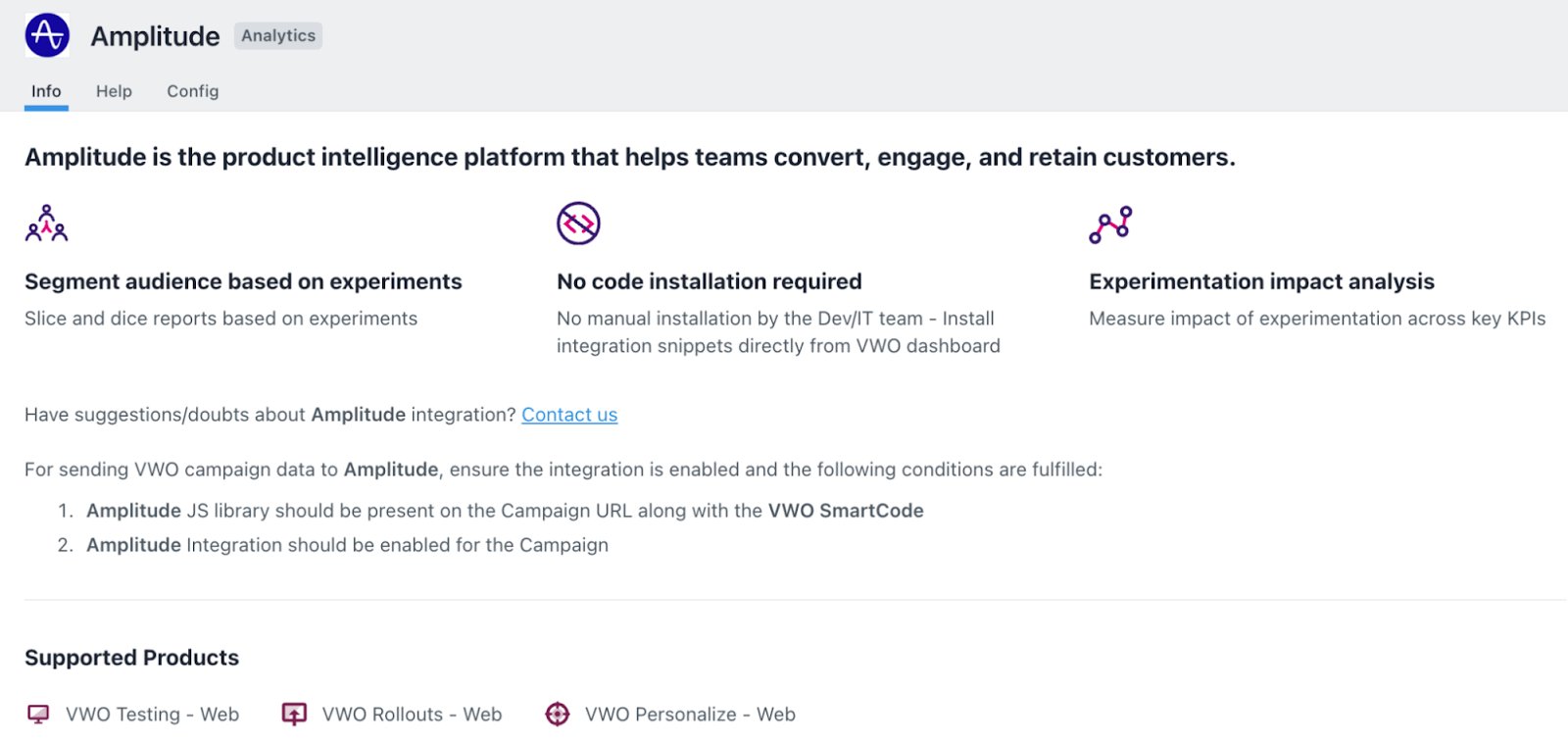
VWO auto-navigates you to the Config tab. From this tab, you can decide which data to transfer between VWO and Amplitude.
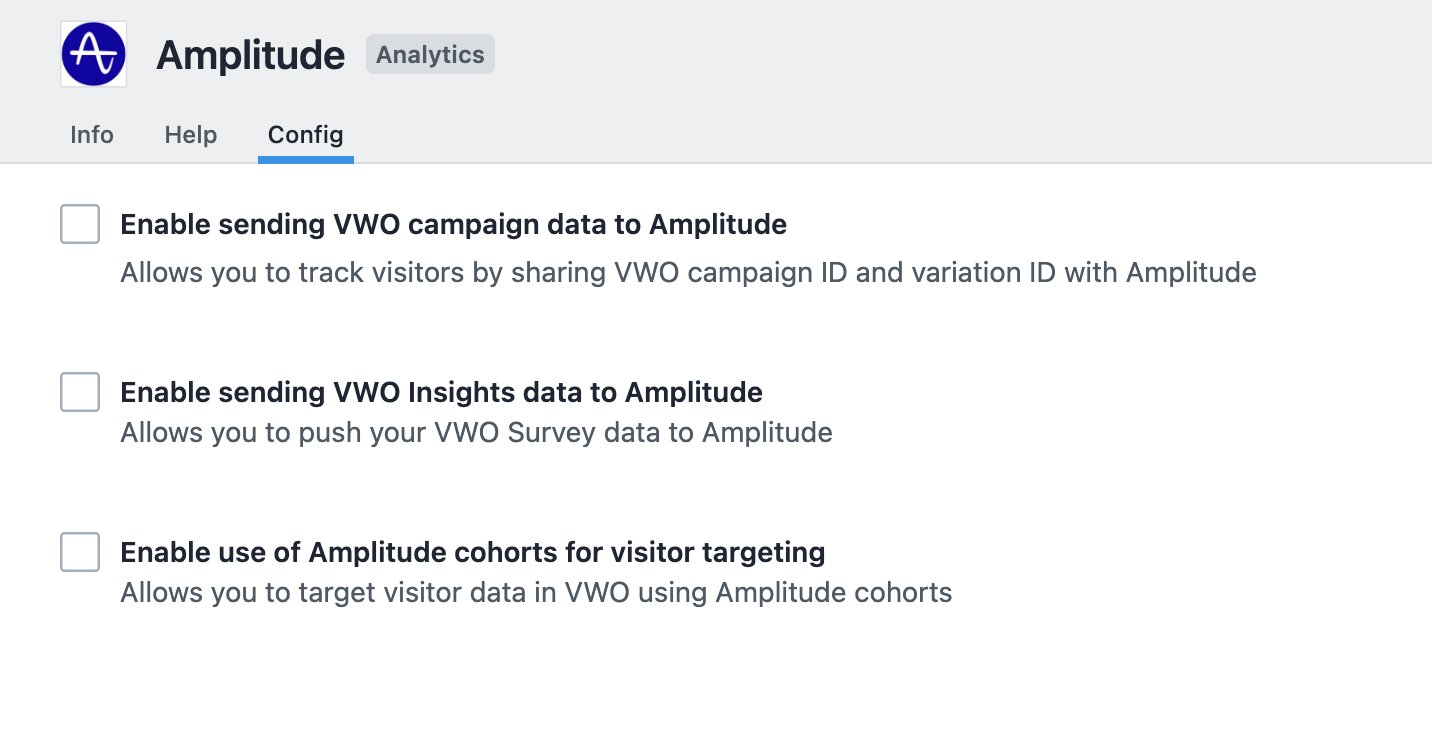
This integration provides three options. You can enable one or more of these options based on your specific tracking and targeting needs. Click on the linked text for more information about each option, including its benefits and how it works.
If you want to send VWO Test and Personalize campaign data to Amplitude, select Enable sending VWO campaign data to Amplitude.
If you want to send VWO survey data to Amplitude, select Enable sending VWO insights data to Amplitude.
If you want to import Amplitude cohorts in VWO and target visitor data, select Enable use of Amplitude cohorts for visitor targeting.
Click Save.
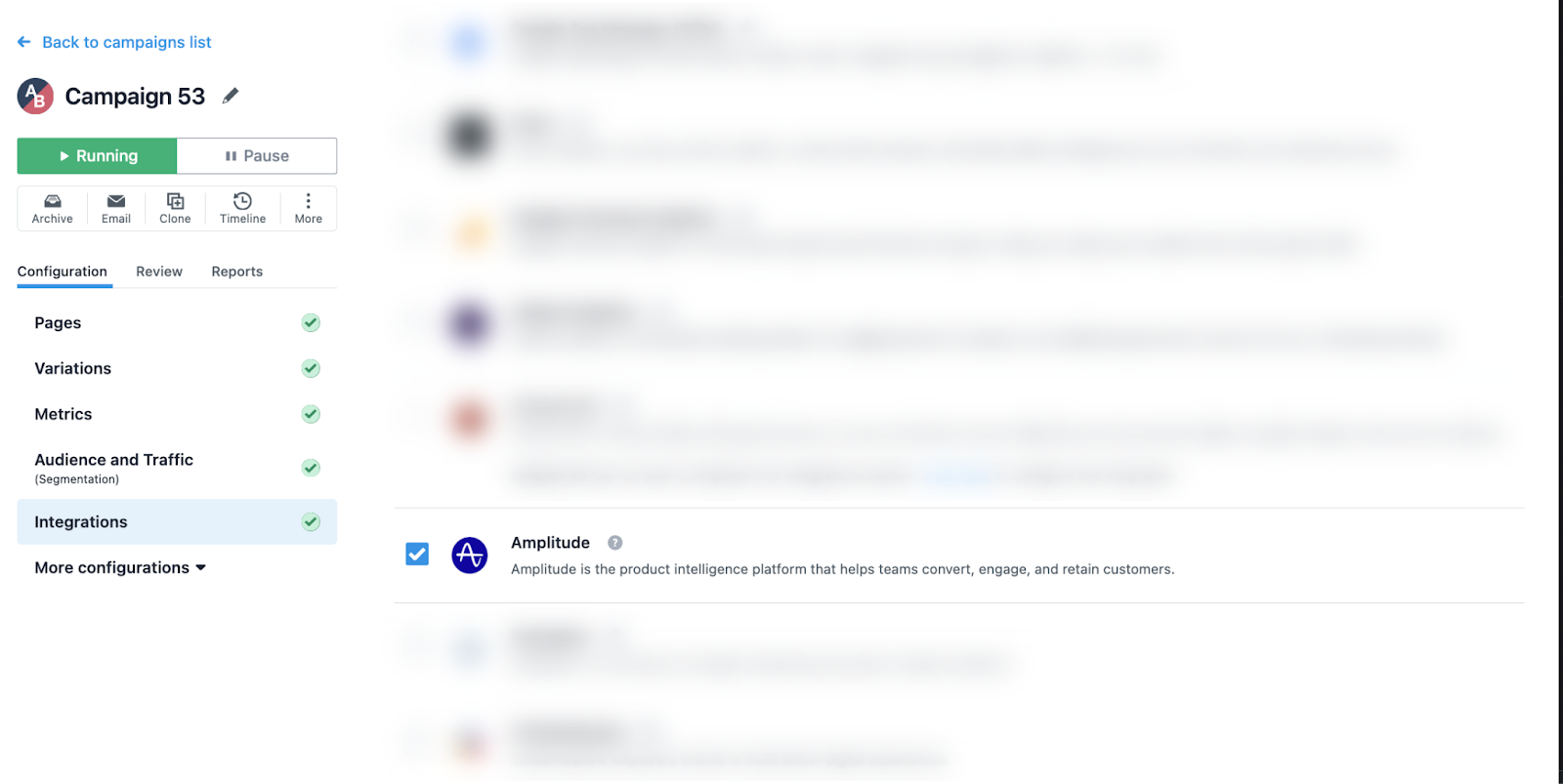
After you configure each option at the account level from the Integrations section, the option applies by default to all new VWO testing campaigns and surveys. To configure it for existing campaigns, select the campaign, go to Configuration > Integrations, and select Amplitude.
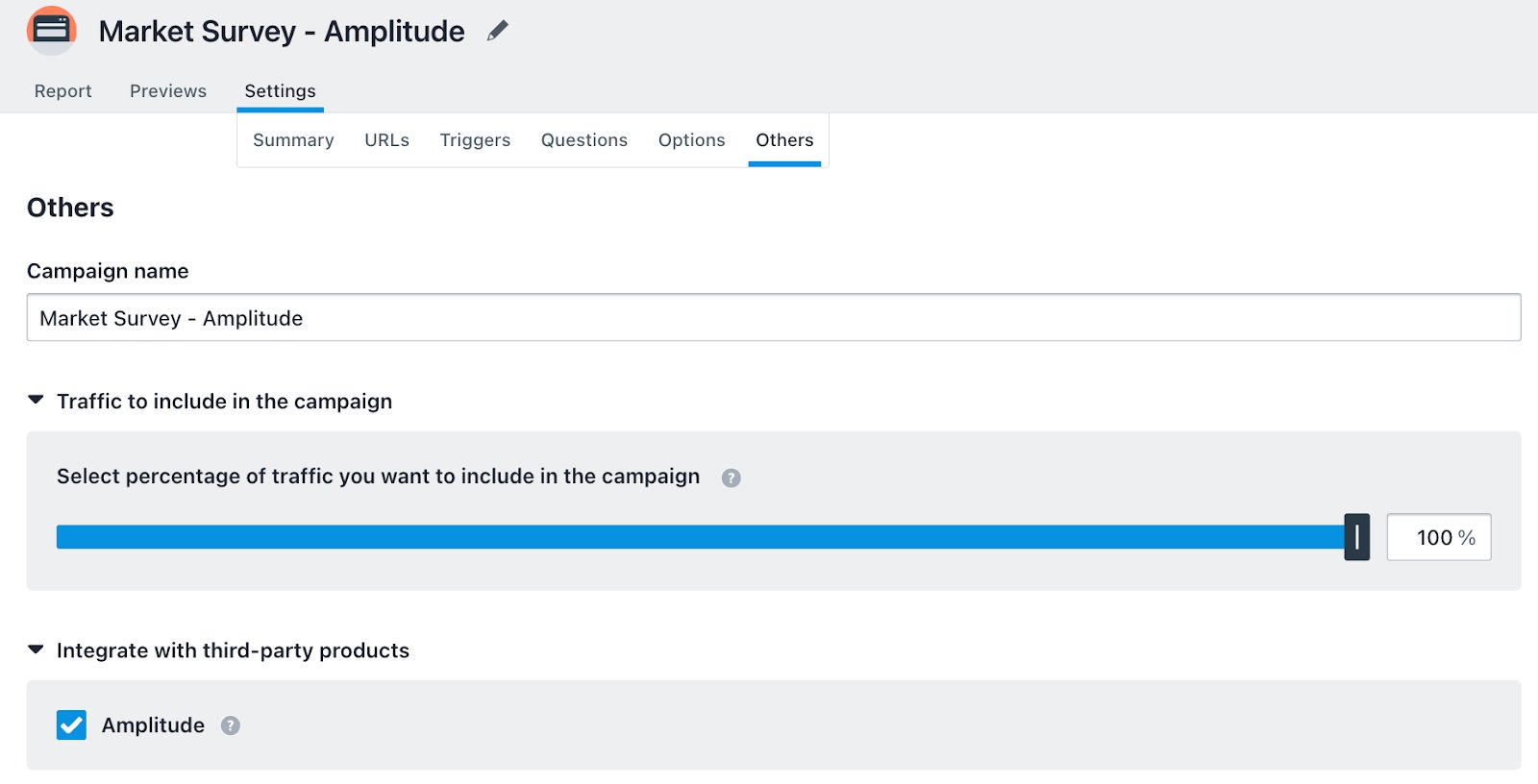
To configure existing surveys, go to Insights > Surveys. Select the Surveys campaign, go to Settings > Others > Integrate with third-party products > select Amplitude.
Send VWO campaign data to Amplitude
This option lets you send VWO Test and Personalize campaign data to Amplitude. VWO shares campaign visitor data through the Campaign ID and shares variation-level visitor data through the Variation ID. You can use this data to track visitors in Amplitude.
The data from VWO is sent to Amplitude with the following specifics:
"user_properties": {
   "$set": {
      "VWO-Test-ID-#":"[varName]"
   }
}

"event_properties": {
   "VWO-Test-ID-#":"[varName]"
}
Where # is the campaign ID and varName is the variation name in VWO. For more information on how to retrieve the corresponding visitor data, refer to View reports in Amplitude.
View reports in Amplitude
To view VWO visitor data reports in your Amplitude dashboard, create an event:
To view the report for an existing event, go to My Workspace > Saved Content and select the chart.
Log in to your Amplitude account.
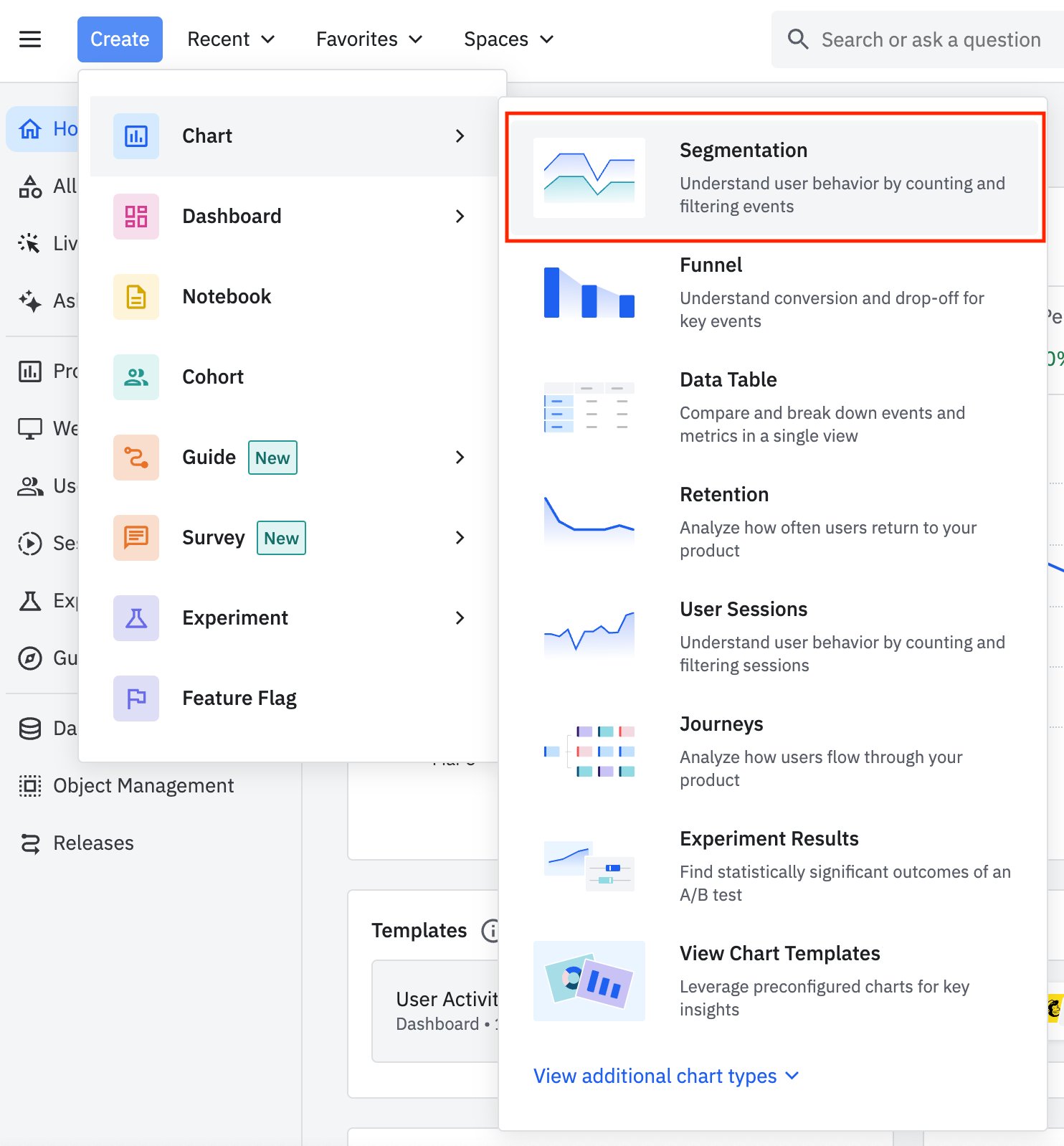
On the Amplitude dashboard, from the top panel, go to Create > Chart > Segmentation.
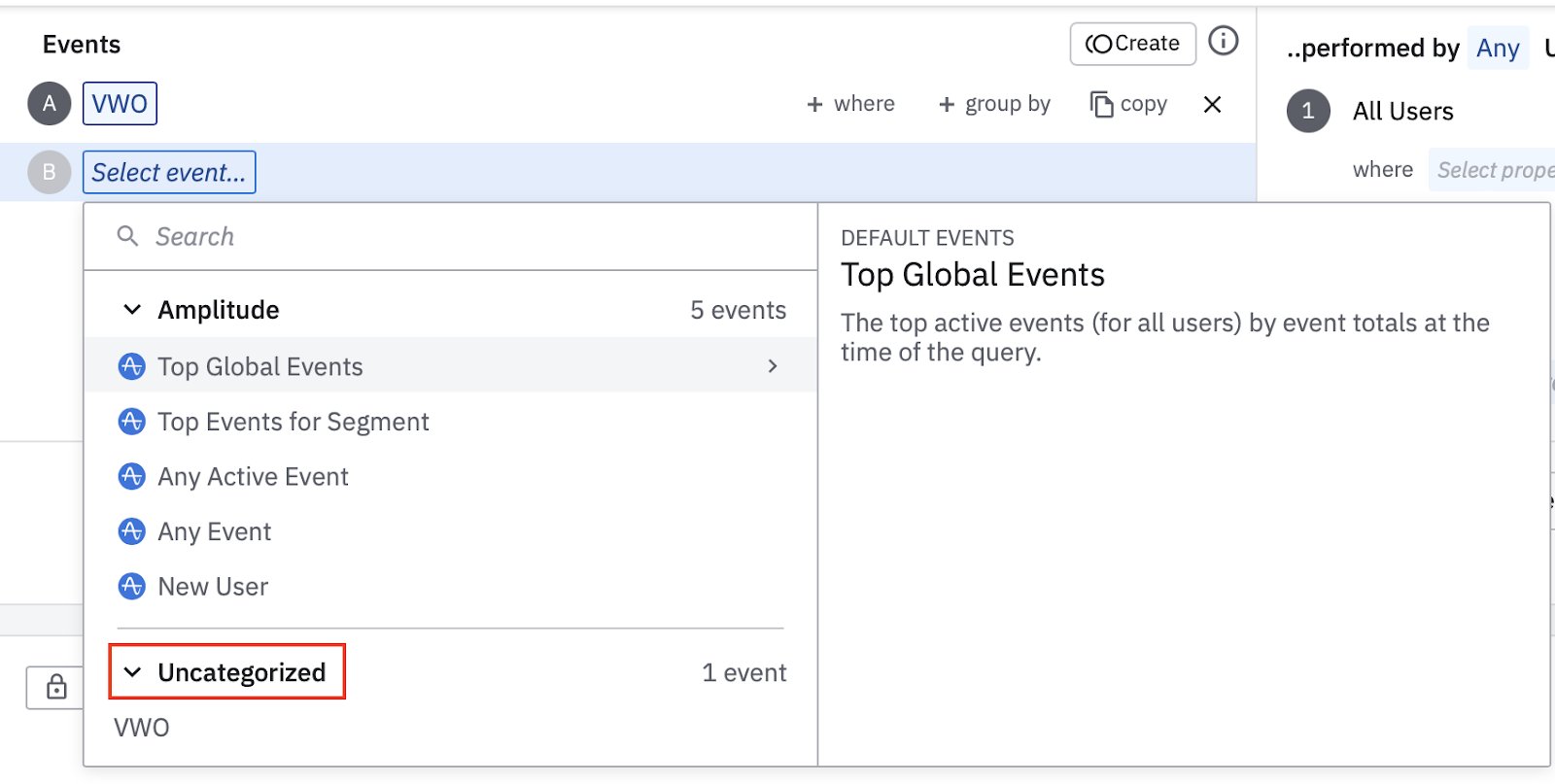
From the events section, click Select event... > Uncategorized > VWO.
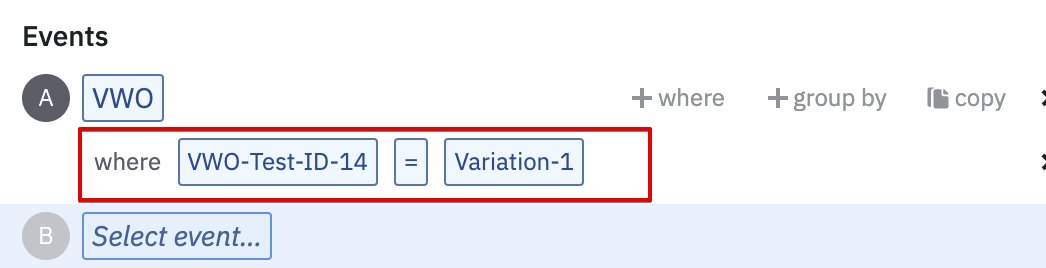
Create a segment for Variation-1 where the user property is VWO-Test-ID-(XX) = Variation-1.
To find your Test ID, log in to your VWO account. Go to the testing dashboard and select the test. Go to Settings > Summary. Scroll down to the Other Information section and check the Campaign ID.
The report is displayed in the right panel.
- To save the chart, click Save.
If you notice a visitor's event property or custom user property getting counted under none or showing an unexpected value, refer to Unexpected values in user counts.
Send VWO Insights (Surveys) data to Amplitude
VWO sends survey data to Amplitude when a visitor takes your survey. Amplitude receives the data as events. Use these events to analyze data from various perspectives and to create reports in Amplitude. For example, use the VWO-survey-answer-submitted event to generate a report:
Log in to your Amplitude dashboard.
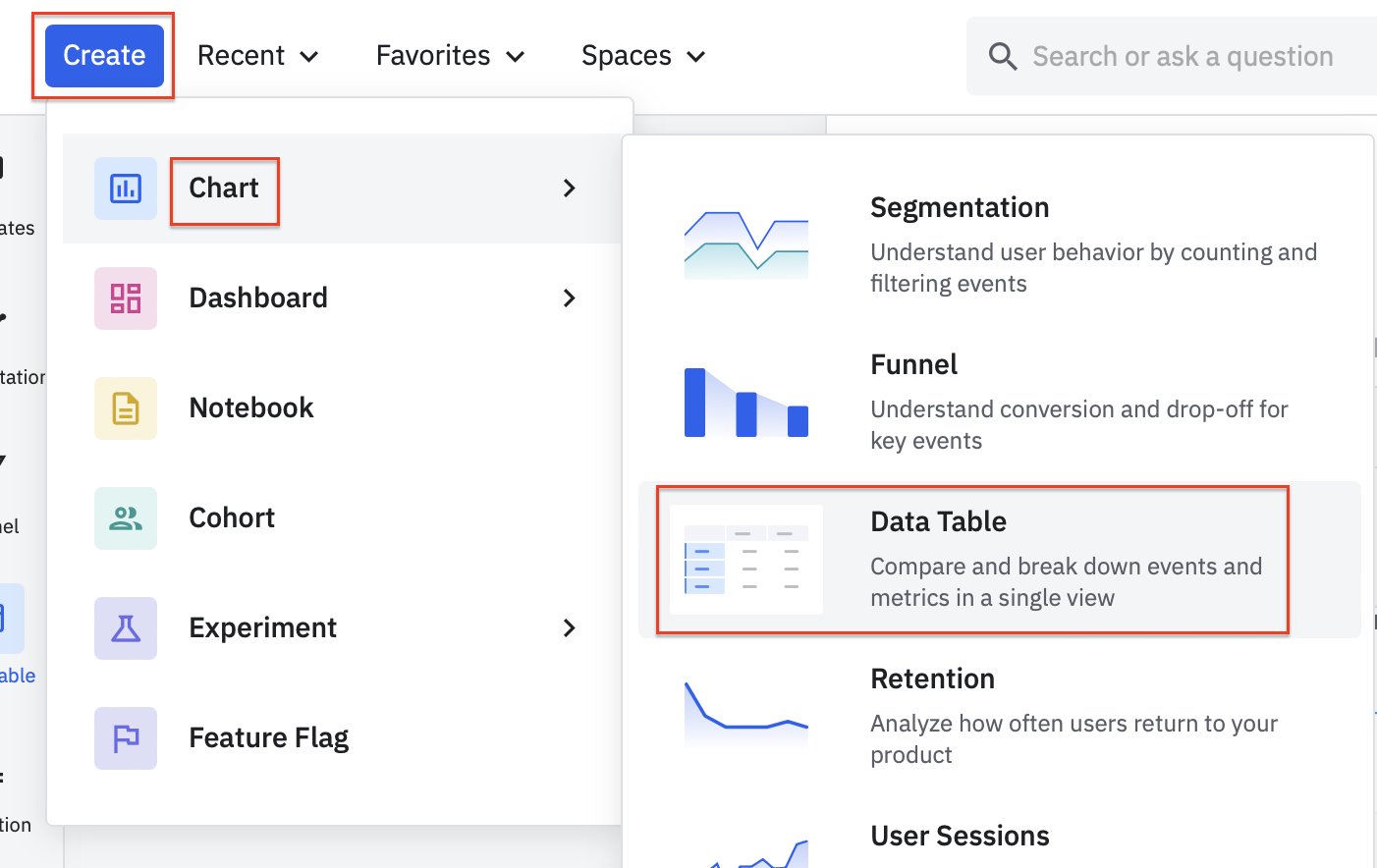
Click Create > Chart > Data Table.
Click Add Event or Metric and select VWO-survey-answer-submitted.
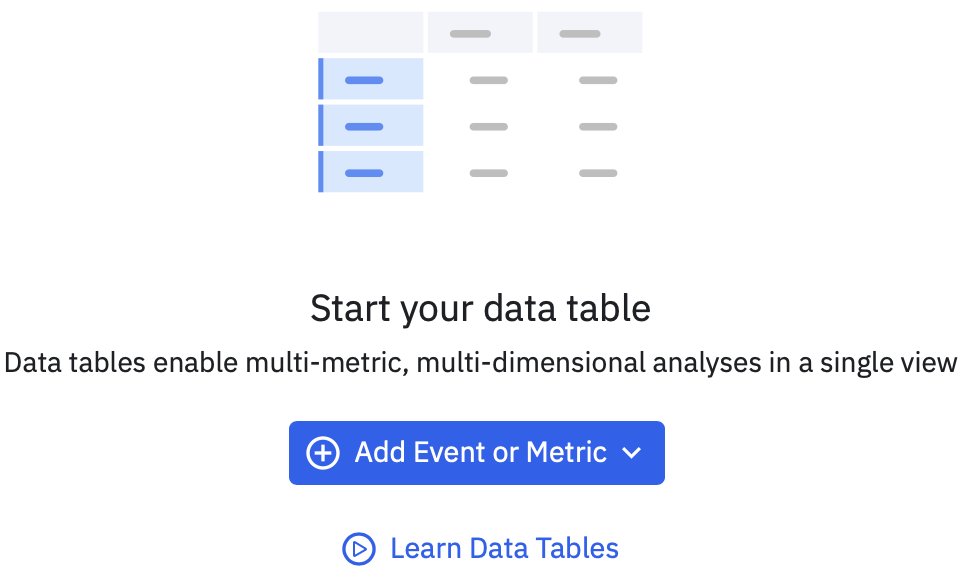
This generates a data table featuring the overall number of survey answers submitted.
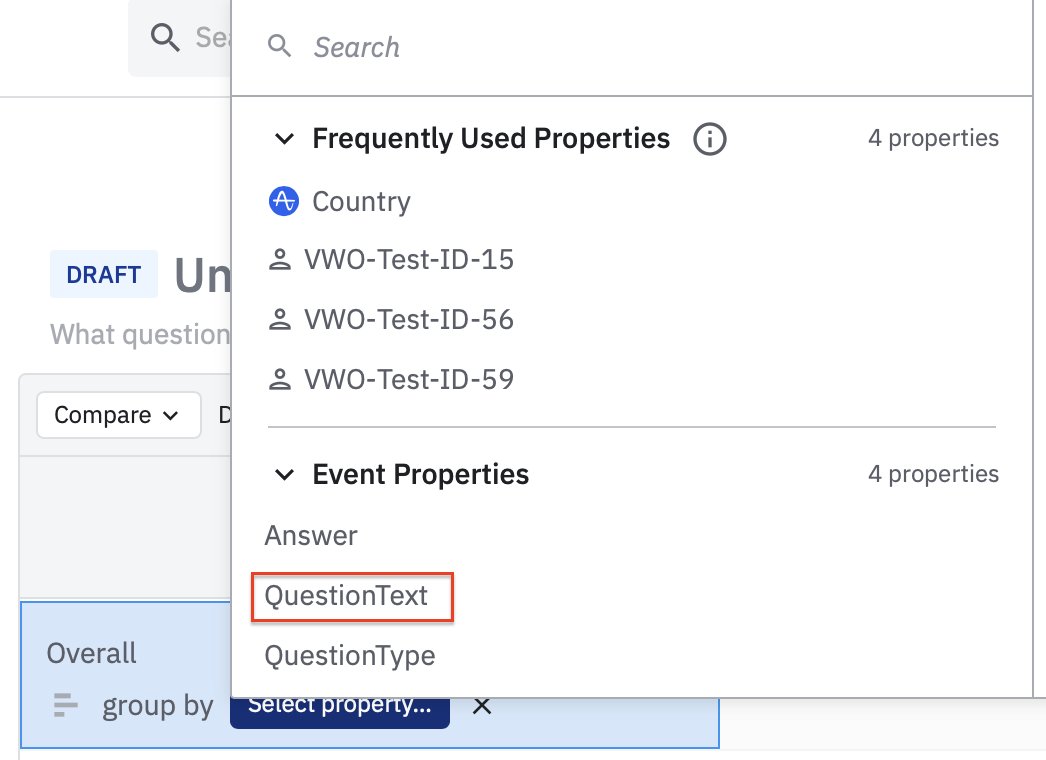
To view the number of answers question-wise, click Select property in the Overall cell and select QuestionText.
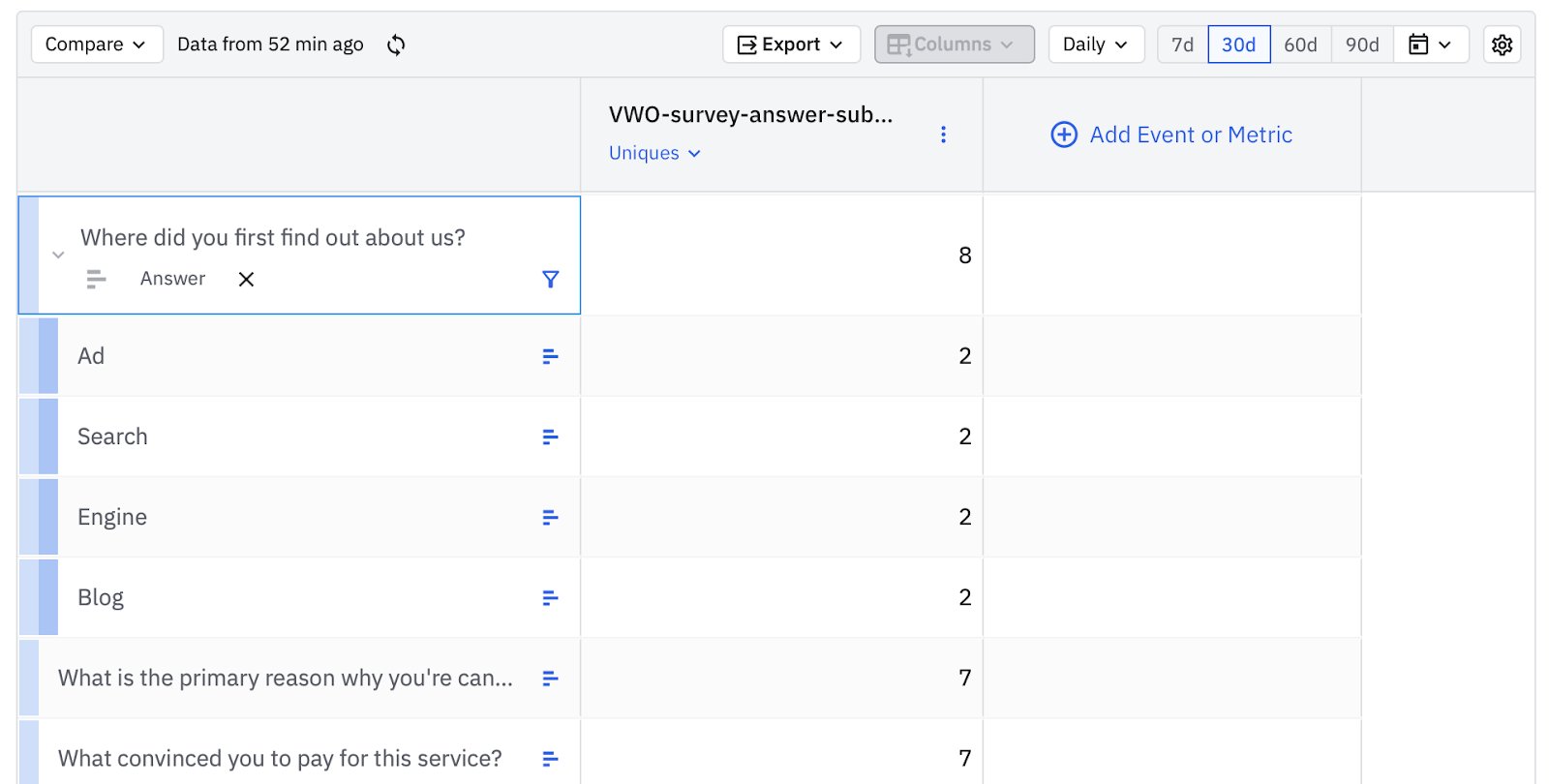
Additionally, you can view the breakdown of the number answer-wise by grouping each question by Answer.
You can also add survey activities such as Survey started and Survey completed to build funnels based on these events and enhance visitor engagement further.
Use Amplitude cohorts in VWO for visitor targeting
You can create targeted experiences in VWO for specific user segments identified in Amplitude. For example, you might have an Amplitude cohort of Power Users who performed specific key actions in your product, such as using advanced features or showing high engagement metrics. Use this integration to import the cohort into VWO and create personalized A/B tests or targeted campaigns for these power users.
Enabling the import of Amplitude cohorts into VWO is a four-step process:
- Prerequisites
- Integrate VWO with Amplitude
- Send VWO campaign data to Amplitude
- Send VWO Insights (Surveys) data to Amplitude
- Use Amplitude cohorts in VWO for visitor targeting
- Target a VWO Campaign using Amplitude cohorts
- Need more help?
Enable the setting in VWO
- In VWO, go to Configurations > Integrations > Amplitude > Config.
- Select Enable use of Amplitude cohorts for visitor targeting.
VWO auto-generates the API key. You need this API key when configuring the VWO destination in Amplitude.
Configure VWO Amplitude Destination in Amplitude
Configuring a VWO destination in Amplitude enables transfer of cohort data from Amplitude to VWO. To create a VWO destination:
From the Amplitude dashboard, go to Data > Catalog > Destinations > VWO.
Click Add another destination.
Enter a name for the destination.
Enter the API key generated in VWO.
In the User ID section, click Select user property, search for Device ID, and select it.
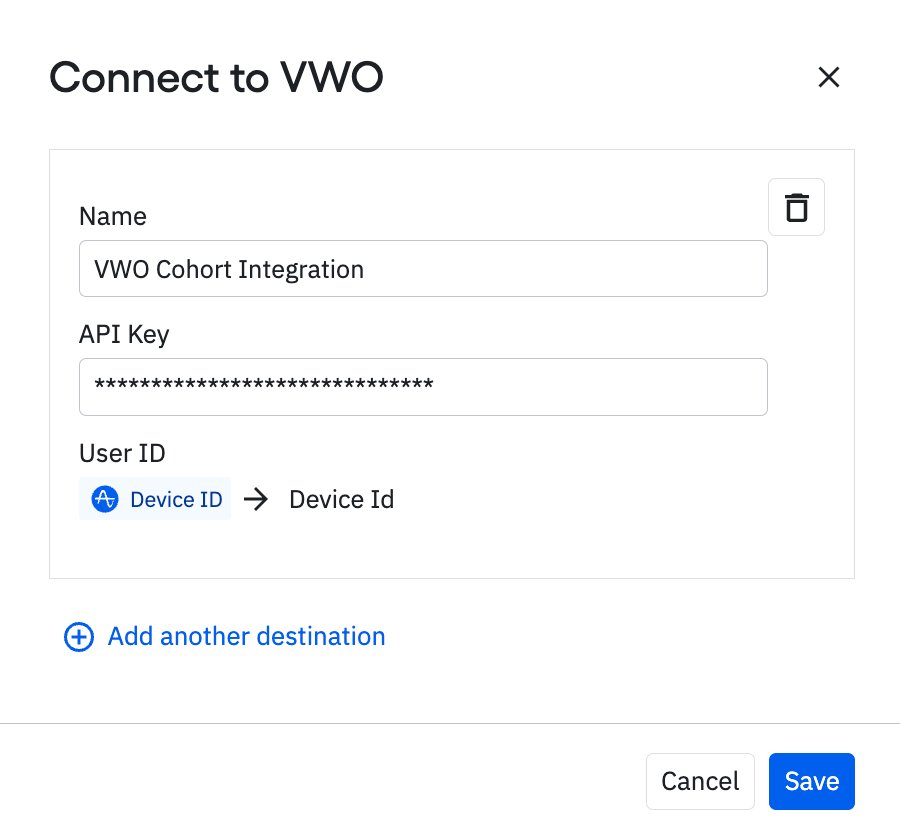
Click Save.
The VWO destination is successfully created.
Sync Amplitude Cohort with VWO destination
In Amplitude, hover over the Users icon and select Cohorts.
Go to any cohort and click Sync.

In the Select Destination pop-up, select the VWO destination and click Next.
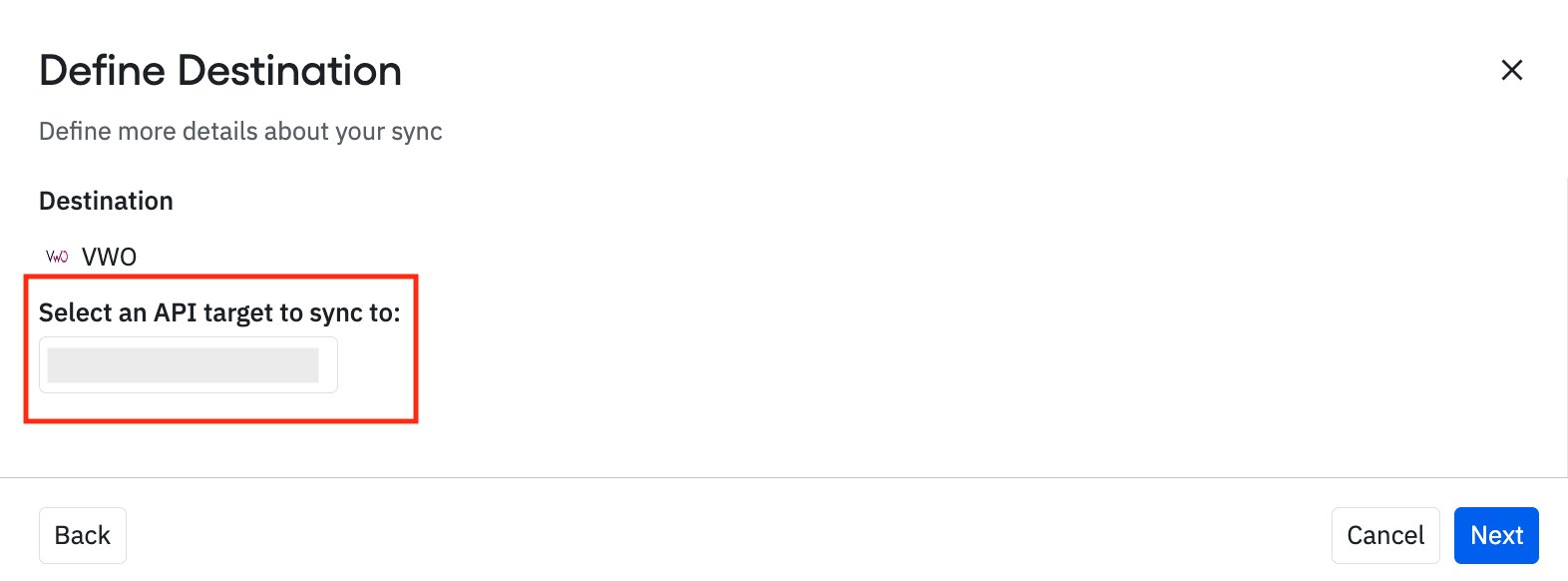
Define how frequently you want the sync to execute.
Amplitude recommends using the Enable Scheduled Sync option, which ensures any new data added to the segment is pushed to VWO. If you need only the current data and don't need new data moved to VWO, choose One-Time Sync.
Select the frequency and click Sync.
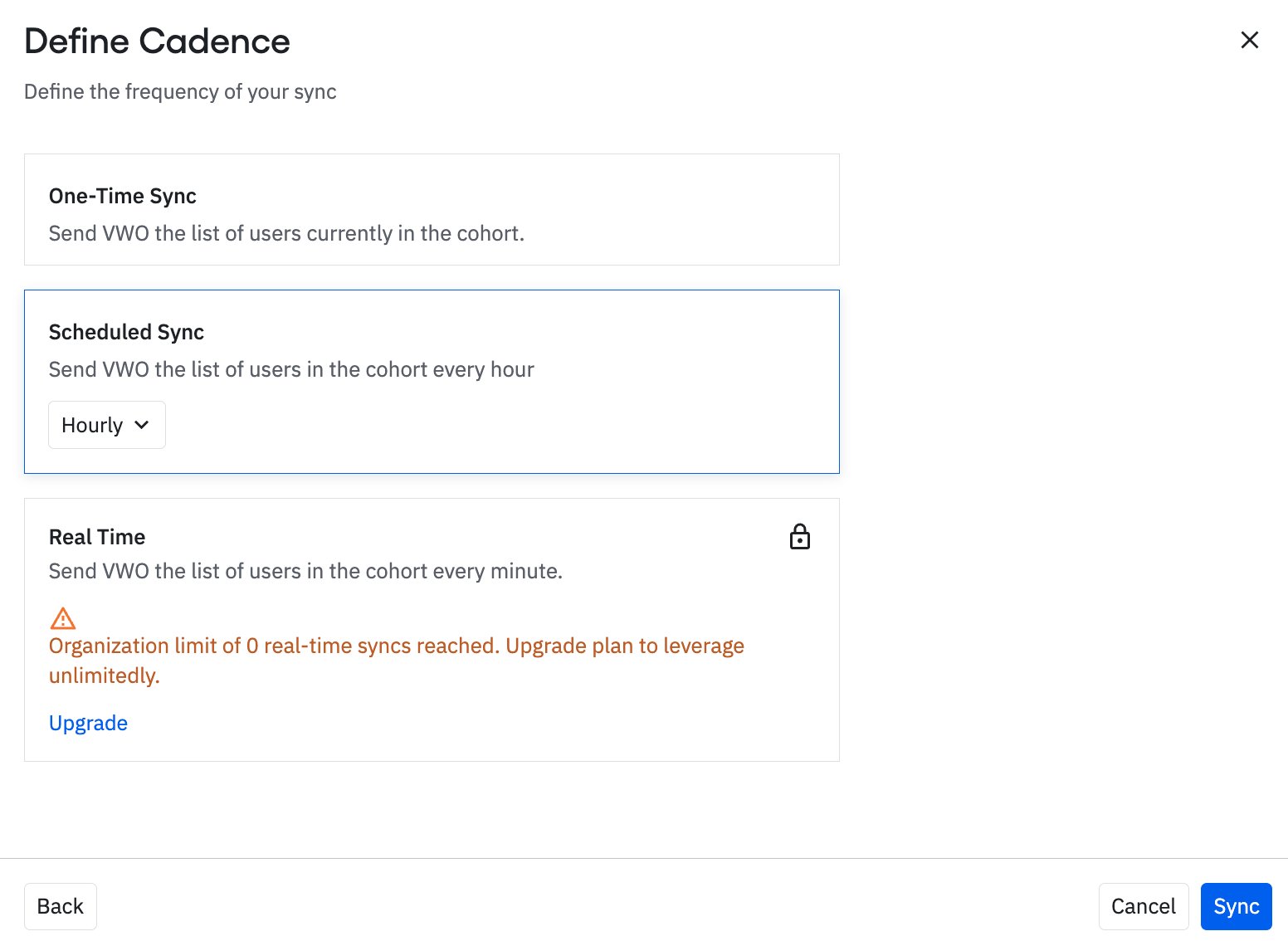
After you connect the Amplitude cohort with the VWO Amplitude destination, complete the rest of the procedure in VWO to support the inbound transfer of cohort data from Amplitude to VWO.
Import Amplitude Audience into VWO
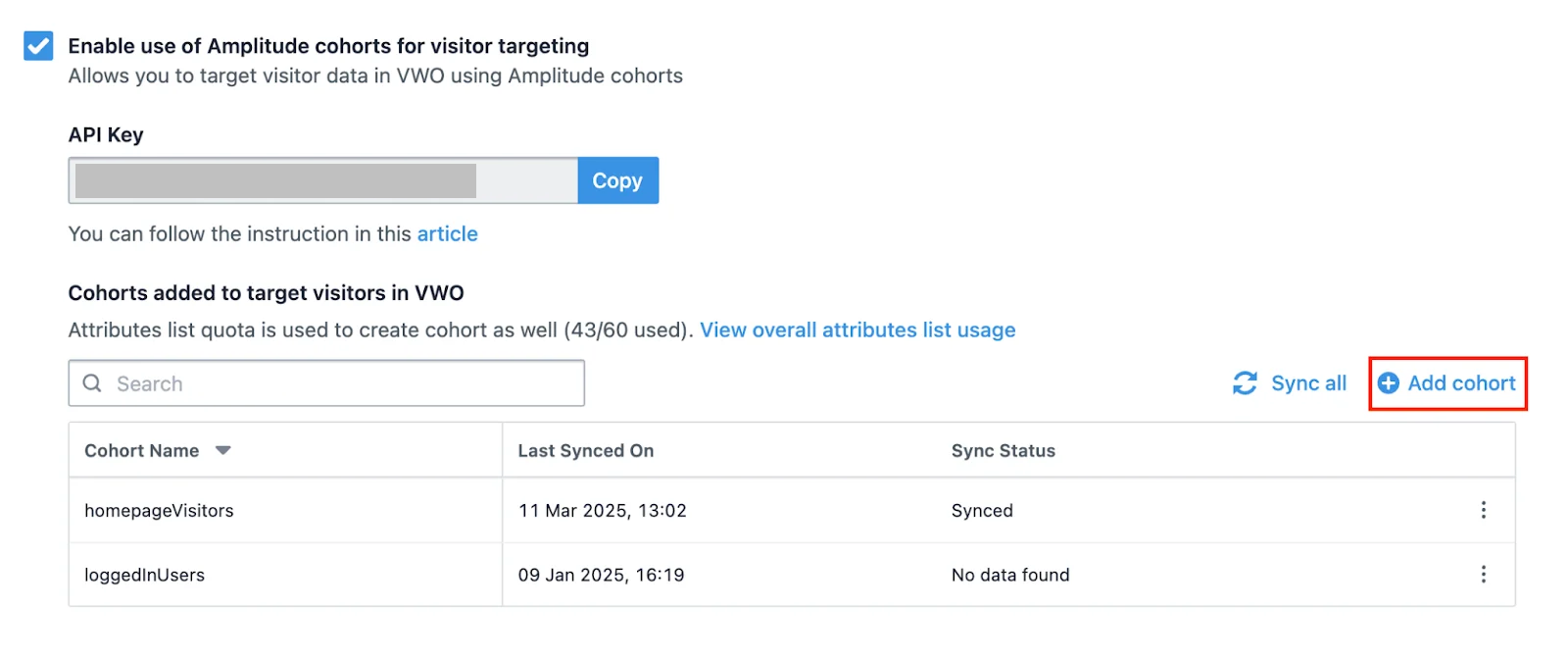
Before you start, enable the Use of Amplitude cohorts for visitor targeting setting in VWO and save it. After it's enabled and saved, follow these steps:
Click Add Cohort.
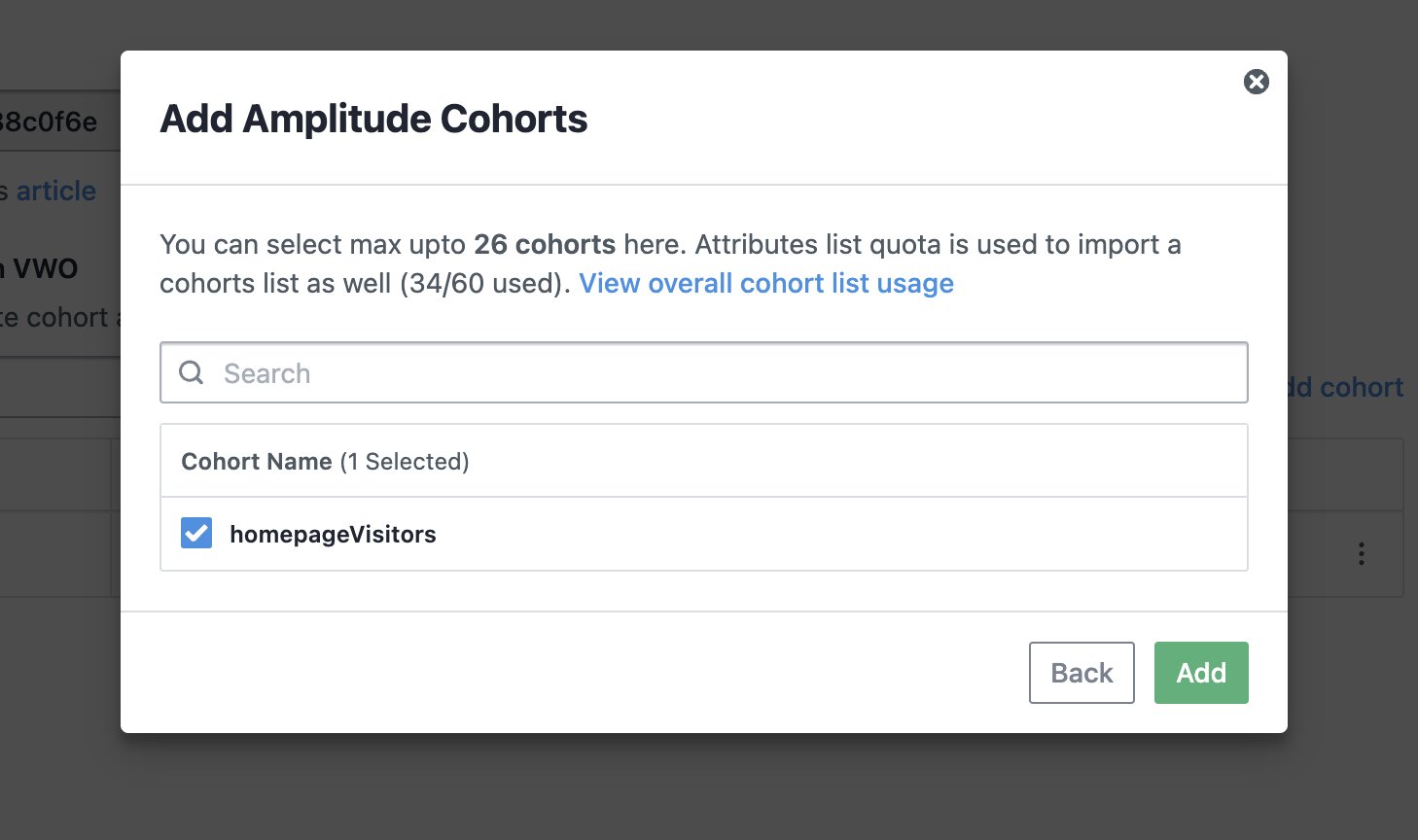
In the Add Amplitude Cohorts pop-up, enter the name of the Amplitude cohort in the search field or directly select from the list of displayed cohorts.
Click Add.
A confirmation toast appears on the screen after the cohort is added successfully.
After you add the cohort, VWO takes around 24 hours to sync the data into VWO. After that, VWO syncs the data every 24 hours. If needed, manually sync the cohorts' data anytime by clicking the Sync all link above the list of imported cohorts. You can also sync an individual cohort list by clicking the corresponding vertical ellipsis (⋮) > Sync.
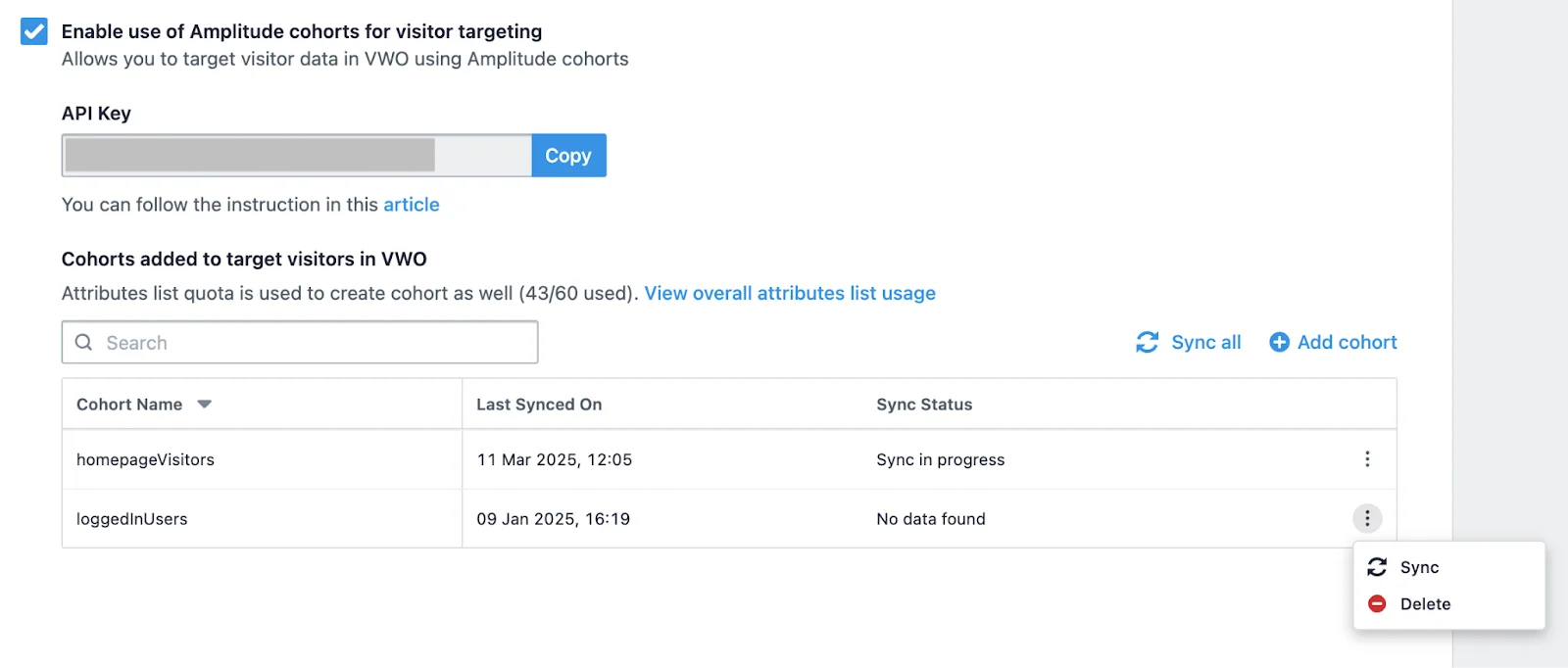
The synced data has an hour-long lag. For example, if the data syncs at 4 PM, the system receives all data collected up until 3 PM.
After you complete these steps, you can target a VWO campaign using Amplitude cohorts.
Target a VWO Campaign using Amplitude cohorts
Log in to your VWO account.
Go to Testing and create a test campaign.
In the Audience and Traffic section, click Custom Segment and create a segment using the Amplitude Cohort condition. Use this condition to fetch the cohorts you synced in VWO from your Amplitude account.
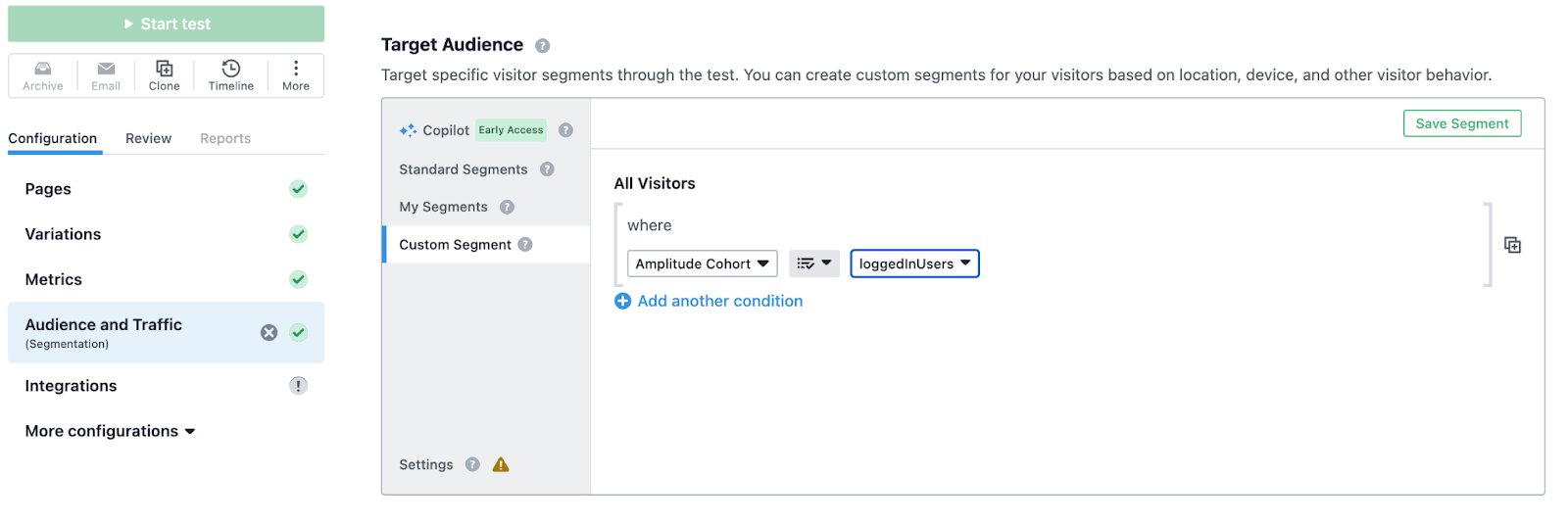
To add multiple conditions, click Add another condition. Define the logical relationship between conditions using the and/or operators, and use brackets to organize the segment condition.
When done, click Save Now.
The targeted experience in VWO for specific Amplitude user segments is configured.
Related resources
For more information or further assistance, contact your VWO customer success manager.
Was this helpful?